
Zendesk app
See a customer's Mulberry plans and claims in the sidebar of a Zendesk ticket.
The Mulberry app for Zendesk Support shows your customer's Mulberry protection plans and claims in the sidebar of a Zendesk ticket. Agents can also search any of your customers by email or order number. The app only reads from Mulberry: it never changes a plan or a claim, and it never sends or submits anything on a ticket.
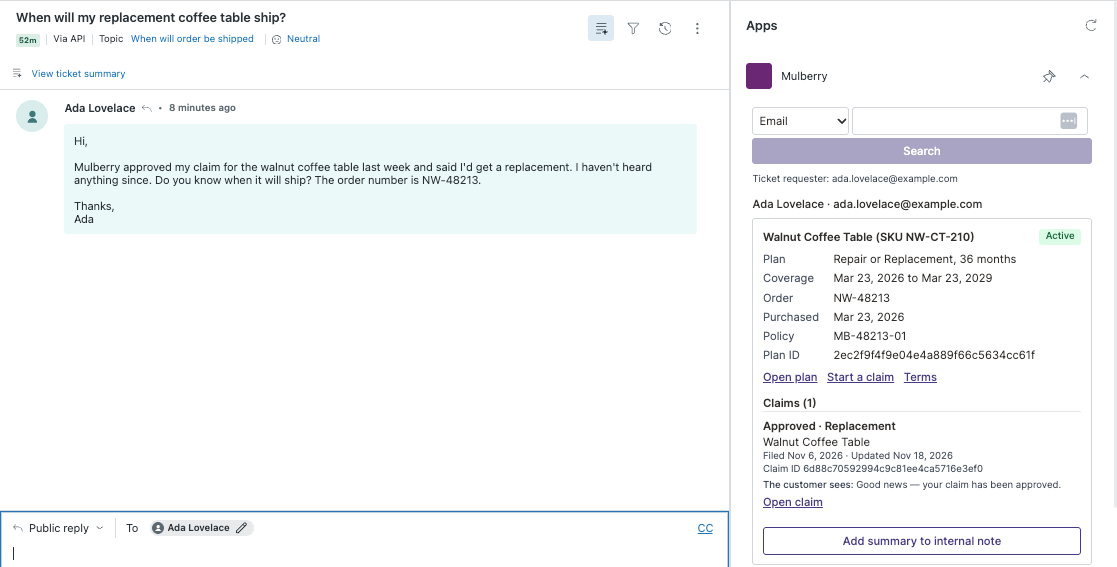
You set it up yourself: create a credential in the Mulberry dashboard, download the app package, and install it in Zendesk.
The client secret is shown onceWhen you create a credential, the dashboard shows its client secret only that one time. Have your Zendesk admin ready to paste it into Zendesk, or keep it in your password manager until then.
Prerequisites
- A Zendesk plan that allows private apps: Suite Growth or above, or Support Professional or above.
- A Zendesk admin to install the app.
- A Mulberry dashboard account with the Partner Admin role, to create the credential.
- For each agent who will open plans and claims in Mulberry, a Mulberry dashboard login. The sidebar itself needs none.
Create a credential
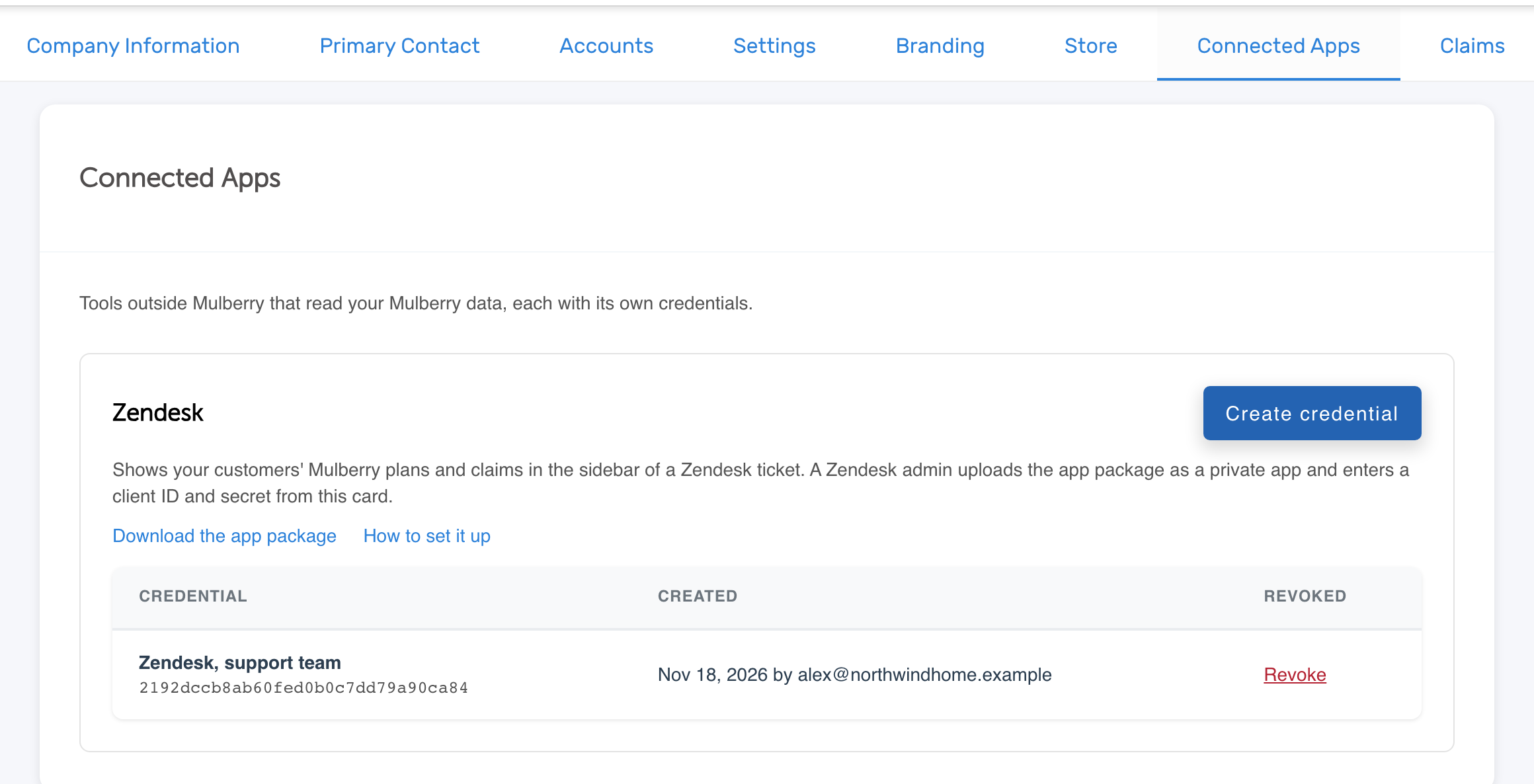
- Sign in to the Mulberry dashboard and open Settings, then Connected Apps. You should see the Zendesk card, with the credentials your store already has.
- Select Create credential, enter a label that says who uses it (for example, "Zendesk, support team"), and select Create credential. You should now see a Client ID and a Client secret.
- Copy both with the copy buttons beside them, then select Done. The secret is not shown again: Mulberry keeps only a fingerprint of it. If it is lost, create another credential and revoke the first.
- Select Download the app package to save
mulberry-zendesk.zip. The package is the same for every store and holds no credential.
Install the app in Zendesk
- In Zendesk, open Admin Center, then Apps and integrations, then Zendesk Support apps.
- Select Upload private app.
- Enter the name Mulberry, choose
mulberry-zendesk.zip, and select Upload. Confirm the upload when Zendesk asks. - On the installation page, paste the Client ID and the Client secret.
- Under Role restrictions, choose which roles see the app. Anyone who sees it can look up any of your customers' Mulberry plans by email or order number.
- Select Install. You should see Mulberry in the list of installed apps.
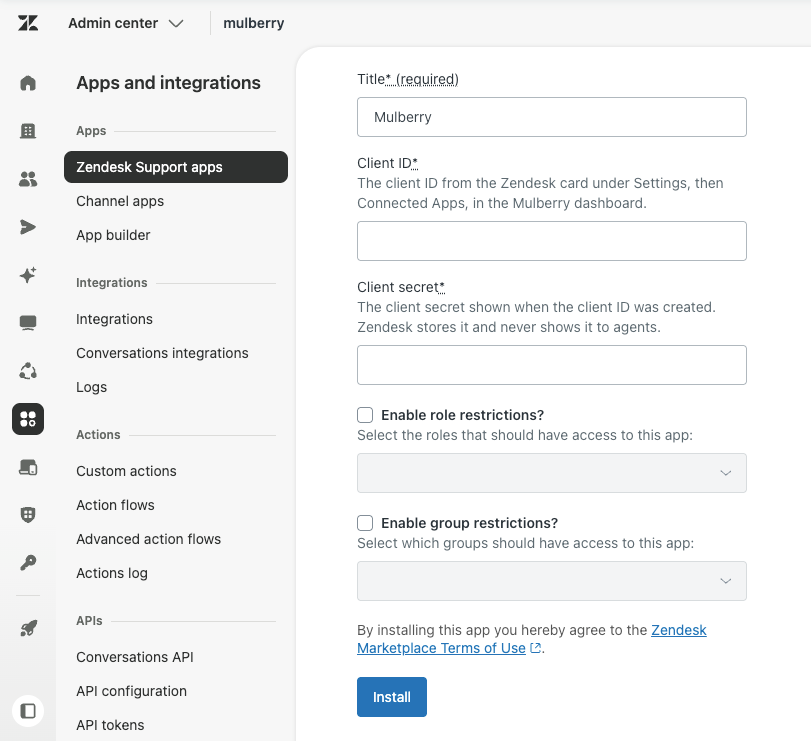
Zendesk stores the client secret on its own servers and adds it to the app's sign-in request there. Agents' browsers never receive it.
Check that it works
- Open a ticket whose requester bought a Mulberry plan from your store.
- Open the apps panel on the right side of the ticket. You should see the requester's Mulberry plans and claims.
- Search for another customer by email or by order number.
What agents can do
- See each plan's products, status, coverage dates, order number and policy number, and each claim's status in the words your customer sees in their own Mulberry account.
- Open a plan in the Mulberry dashboard. If your dashboard has a Claims page, agents can also open a claim or start one from the sidebar; without it, the sidebar shows claims without those links.
- Add a summary of a plan to the ticket's internal note. The app only adds to an internal note: if a public reply is already being written, it copies the summary instead and leaves the reply alone. It never submits the ticket.
If an agent is signed out of the dashboard, a link from the sidebar opens the dashboard's home page after they sign in; select the link again to reach the plan or claim.
Replace or revoke a credential
The Zendesk card lists every credential your store has had, with who created it and when, and who revoked it and when.
- Replace one: create a new credential, enter it in the app's settings in Zendesk's Admin Center, then revoke the old one. Both work until the old one is revoked.
- Revoke one: select Revoke on its row and confirm. It stops working at once: the next lookup from a Zendesk app that uses it is refused. A revoked credential cannot be turned back on.
If something goes wrong
| What the app says | What to do |
|---|---|
| "Mulberry could not sign this app in" | The client ID or client secret is wrong, or the credential was revoked. Create a new credential and enter it in the app's settings in Admin Center. |
| "Too many lookups in the last minute" | Wait a minute and try again. The limit is shared by every credential your store has, so a second credential does not raise it. |
| "Could not reach Mulberry" | Try again. If it keeps happening, contact Mulberry. |
To remove the app, open Zendesk Support apps, select the Mulberry app's menu, then Uninstall. Revoke its credential on the Zendesk card as well.
Updated about 2 hours ago