
Show offers at checkout
Present Mulberry protection offers natively inside the Shopify checkout.
Overview
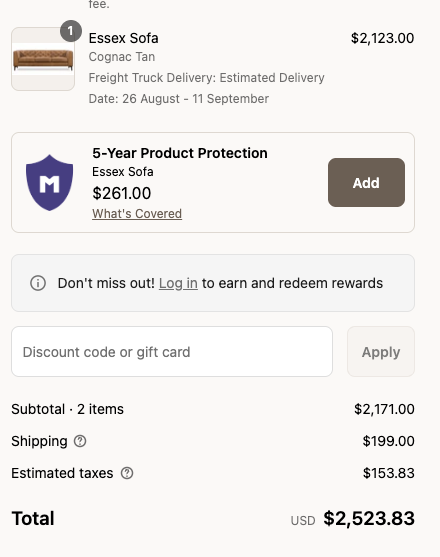
Add Mulberry protection offers directly inside your Shopify checkout with the mulberry-checkout-button checkout UI extension — no code required. For each eligible, unprotected product in the cart, an offer card appears in the order summary, and the customer can add coverage and pay for it in the same purchase:
This is a Shopify Plus capabilityCheckout UI extensions run only on Shopify Plus stores. If you are not on Shopify Plus, place offers on your product pages instead — see Show offers on product pages.
Prerequisites
Before you start, make sure:
- Your store is on Shopify Plus.
- The Mulberry Product Protection app is installed and connected. See Install Mulberry on Shopify.
- Mulberry has configured pricing for your account, so offers are being returned for your products.
Enable the offer in the checkout editor
- In your Shopify admin, go to Settings → Checkout.
- Next to your live checkout theme, click Duplicate, and make your changes on the copy — the live checkout stays untouched until you publish.
- Next to the duplicate, click Customize to open Shopify's checkout editor.
- In the Order summary section, click Add block and select mulberry-checkout-button.
- With an eligible, unprotected product in the test cart, you should now see the Mulberry offer card in the order summary preview.
- (Optional) Set Default Plan — the plan duration, in years, to preselect on the card (for example,
2). If no plan matches that duration, the most expensive plan is preselected. - Save, check the preview, then publish the theme.
- Your live checkout now shows a Mulberry offer for each eligible, unprotected product in a customer's cart.
Placement is fixedThe card always renders immediately after the cart items in the order summary — you can't move it elsewhere in the checkout. Whether it appears in the Shop Pay checkout is controlled by Shopify's own extension placement, not a Mulberry setting.
How the offer behaves
- Each card shows the plan title and price, the product it protects, a What's Covered link (Mulberry's coverage page, or your account's custom coverage summary if one is configured), and an Add button.
- Tapping Add inserts the protection plan as an order line item — quantity matched to the product it protects — and the card for that product disappears. The customer pays for the coverage in the same checkout.
- Products that already have a plan in the cart never get a card, and nothing renders until offers have loaded — no duplicate or broken offers.
Coverage is registered automaticallyBecause the plan rides on the order as a normal line item, the standard
orders/createflow registers the warranty with Mulberry — no manual entry, CSV upload, or extra API call. See Add a warranty to an order.
Coming from the legacy checkout script? The extension supersedes the oldmulberry-containerdiv and order-status "Additional Scripts" injection — once it's enabled, you no longer need either.
Related
- Show offers on product pages — the storefront placement for non-Plus stores and for offering coverage before checkout.
- Show offers on draft orders — add plans to merchant-created draft orders.
- Install Mulberry on Shopify — install and connect the app.
Updated 3 months ago