
Shipping insurance on Shopify
Offer Package Protection in your checkout and on your cart page.
Package Protection lets your customers insure their order against loss, damage, or theft in transit. On Shopify the offer can appear in three places: two inside checkout and one on your cart page. This page shows each one and how to switch it on. For what's covered and how the premium is worked out, see Shipping Insurance. Technical details for your developer are in Shipping insurance on Shopify: developer notes.
It's switched on in two placesMulberry enables shipping insurance on your account, sets your customer rate, and turns on the locations you want. You then switch the offer on in Shopify. If you switch it on in Shopify but it never appears, your Mulberry account most likely isn't enabled yet. Contact your account manager.
Where customers see it
The wording below is the default; Mulberry can tailor it to your store.
In checkout, below the cart items
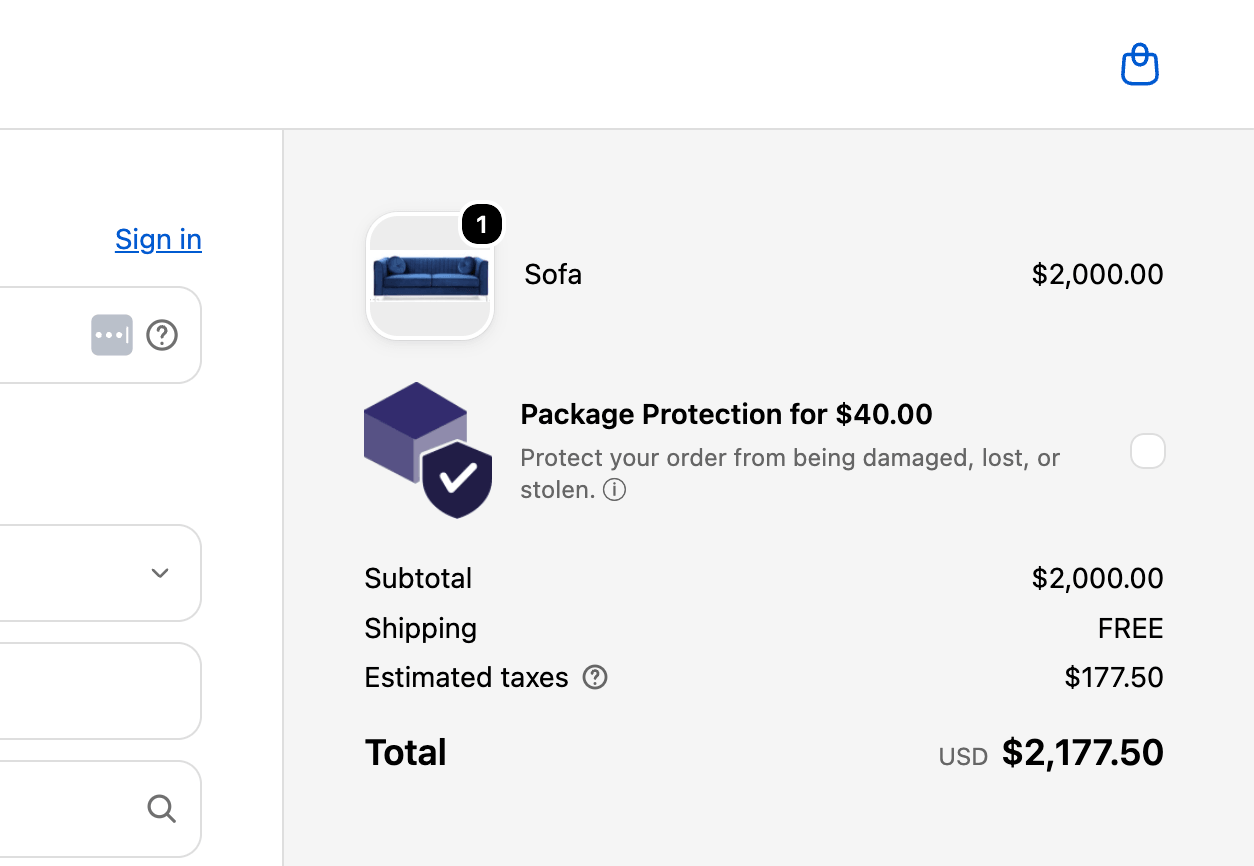
This is the default location. A Package Protection card sits under the items in the order summary, showing the premium, a short description with a link to the terms, and a checkbox.
In checkout, below the shipping options
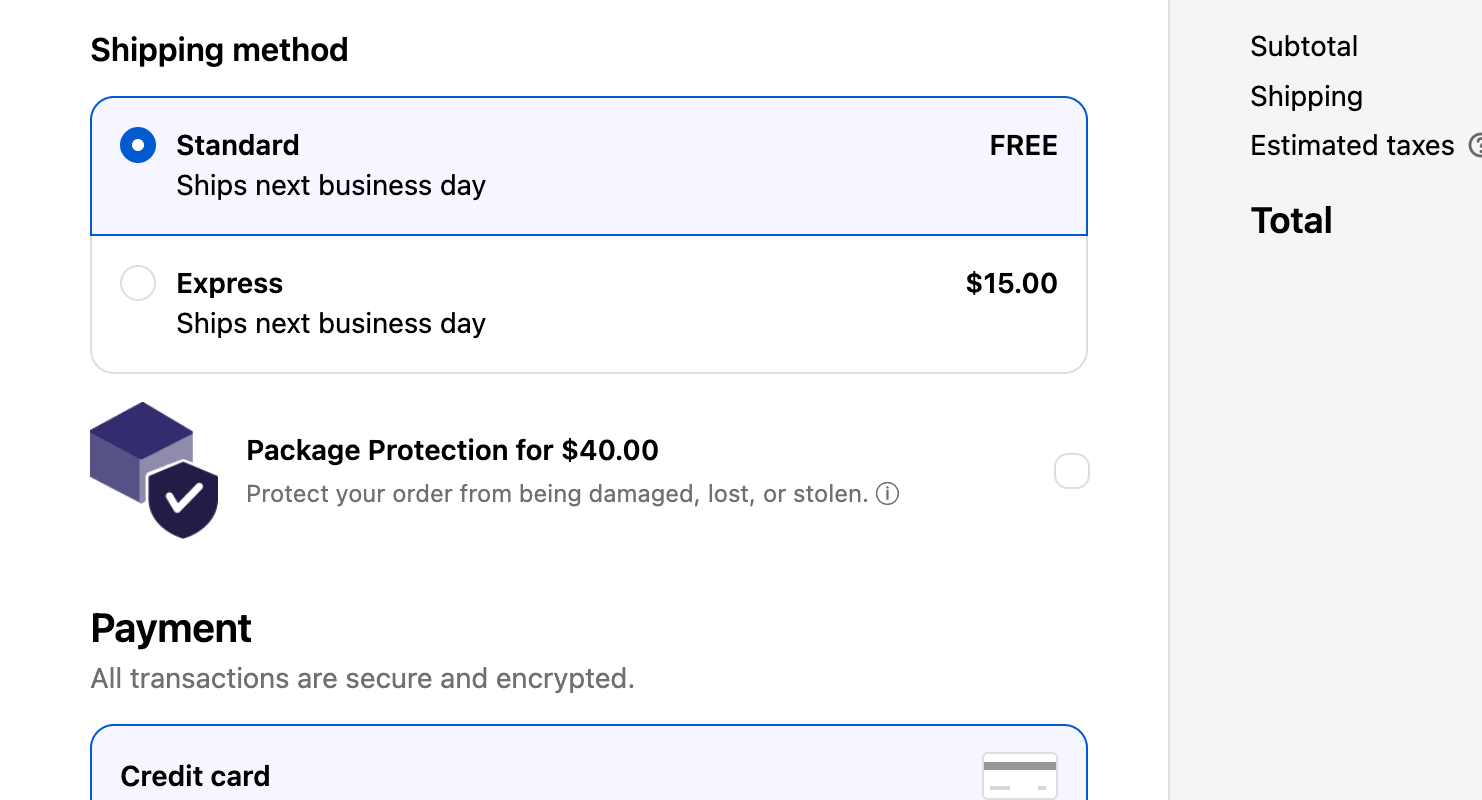
The same card appears on the shipping step, under the shipping methods. Mulberry turns this location on for your store when you ask for it.
On your cart page, as the checkout button
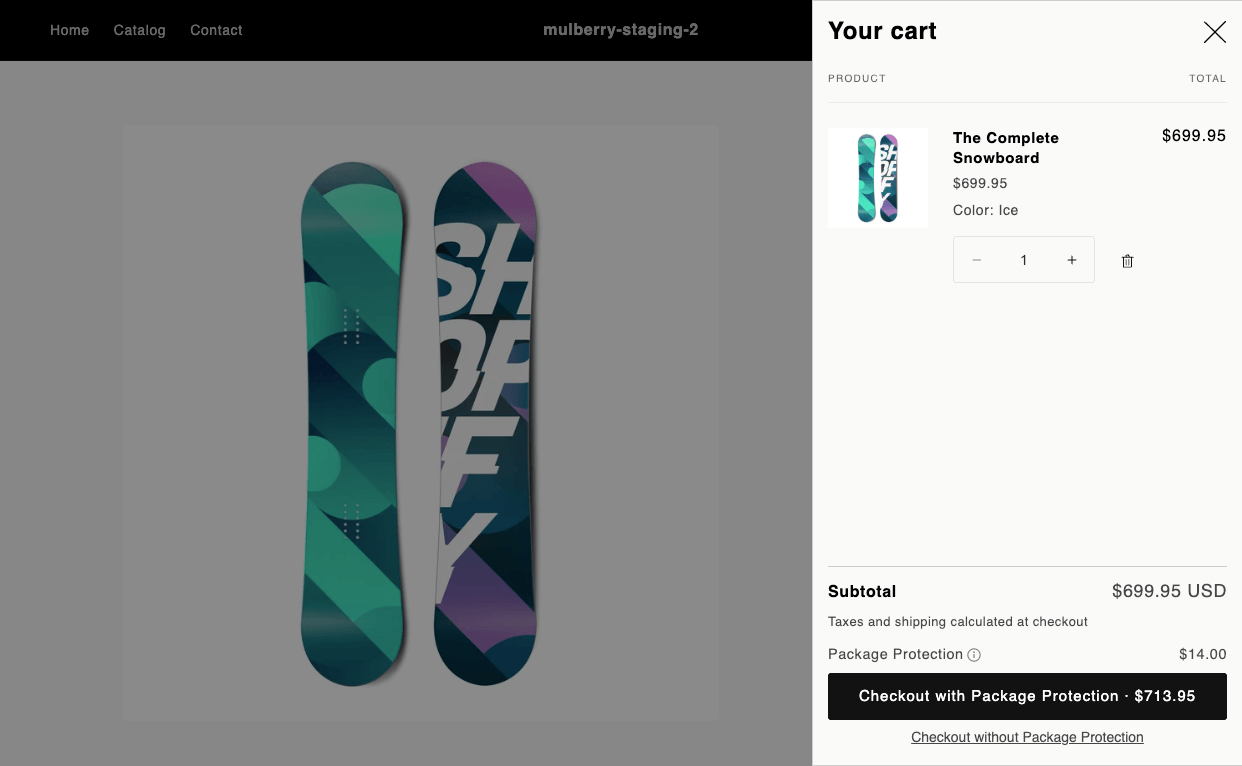
Your cart's checkout button becomes Checkout with Package Protection, which adds protection and takes the customer to checkout. A Checkout without Package Protection link below it skips protection, and a Package Protection line above it shows the premium. Mulberry turns this location on for your store when you ask for it.
On draft orders
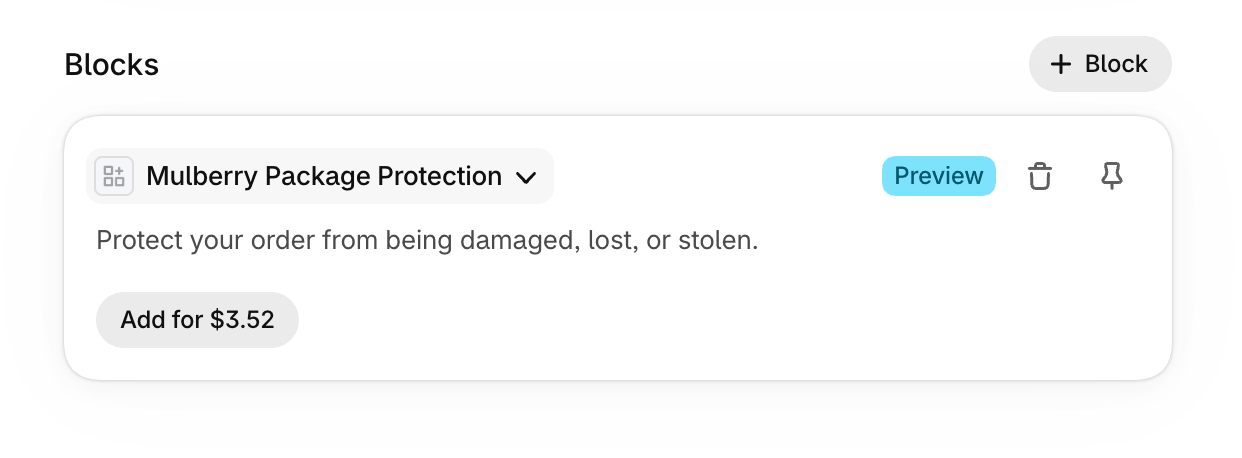
Orders your team builds by hand in the Shopify admin never reach checkout. For those, the Mulberry Package Protection block adds protection from the draft order page. See Sell via draft orders.
Before you start
- The Mulberry Product Protection app is installed on your store. See Install the Mulberry app.
- Shipping insurance is enabled on your Mulberry account, with your customer rate set and the locations you want turned on. Contact your account manager if you're not sure.
- For the checkout locations, your store uses Shopify's checkout editor (Checkout Extensibility). Stores still on the older
checkout.liquidcheckout can't show them.
Turn on the offer in checkout
- In your Shopify admin, go to Settings → Checkout.
- Next to the checkout you want to edit, click Customize.
- Add the mulberry-shipping-insurance block in each location you want:
- Below the cart items: under Order summary → Cart, click Add block.
- Below the shipping options: under Main → Shipping method → Shipping option list, click Add block. Add this one only if Mulberry has turned that location on for your store.
- With the block selected, turn on Enable shipping insurance. While it's off, the offer shows in the editor preview only, so you can check it before customers see it.
- (Optional) Turn on Auto-add shipping insurance to start every checkout with protection already added. Customers can still uncheck it.
- Click Save.
You should now see the Package Protection card in the editor preview, below the cart items or the shipping options.
Auto-add lifts take-upMost retailers see the highest take-up with Auto-add on. Customers start out protected and can still opt out.
Turn on the checkout button on your cart page
- In your Shopify admin, go to Online Store → Themes, and click Customize on your live theme.
- Open App embeds (the puzzle-piece icon in the left sidebar).
- Under Mulberry Product Protection, turn on Shipping insurance button.
- Click Save.
You should now see Checkout with Package Protection when you add a product to your cart and open the cart.
Button not changing?Mulberry has to turn this location on for your store first, and changes on Mulberry's side can take a few minutes to reach your storefront. If it's on and your cart still shows your usual checkout button, your theme's button may need your developer to point the embed at it. See Shipping insurance on Shopify: developer notes.
Check it with a test order
- With the offer switched on, add a product to your cart and go to checkout.
- Confirm the Package Protection card shows the premium, for example "Package Protection for $40.00".
- Check and uncheck the box. The order total should go up and down by the premium.
If you turned on the cart page button, also open your cart and confirm Checkout with Package Protection shows the total including protection.
Offer not showing?Check, in order: shipping insurance is enabled on your Mulberry account, the location is turned on for your store, Enable shipping insurance is on and saved, and the cart has at least one eligible product. If the offer shows in the editor preview but not in a real checkout, Enable shipping insurance is usually still off.
After the order is placed
You don't need to do anything for protected orders. Mulberry records the protection when the order is placed, registers the shipment with the insurer when you fulfill the order with a tracking number, and voids the protection if the order is cancelled.
Fulfill with a tracking numberA fulfillment without a tracking number isn't registered with the insurer, so the order isn't covered in transit. Add tracking when you fulfill.
Updated 23 days ago