
Shopify POS
Sell and manage warranty plans during in-store transactions.
Overview
The Mulberry Product Protection Shopify app includes a POS extension that makes it easy for store associates to offer and manage warranty plans during in-store transactions. When a customer adds an eligible product to the cart, warranty options appear automatically. Associates can also review and manage warranty selections for the entire order at any time using the Mulberry tile on the POS home screen.
Warranty plans added through POS are registered automatically when the order is completed, just like online orders — no manual entry or CSV upload required.
Add a customer before checkoutTo ensure prompt delivery of warranty contract information to in-store customers, a customer must be added to the order before completing checkout. See Adding the Customer to the Order below.
Prerequisites
Before getting started, ensure the following:
- The Mulberry Product Protection app is installed on your Shopify store.
- The Shopify POS app is installed and up to date on your device.
- Your store's Mulberry warranty product collection has been enabled in the POS sales channel.
Setting Up the Mulberry Tile
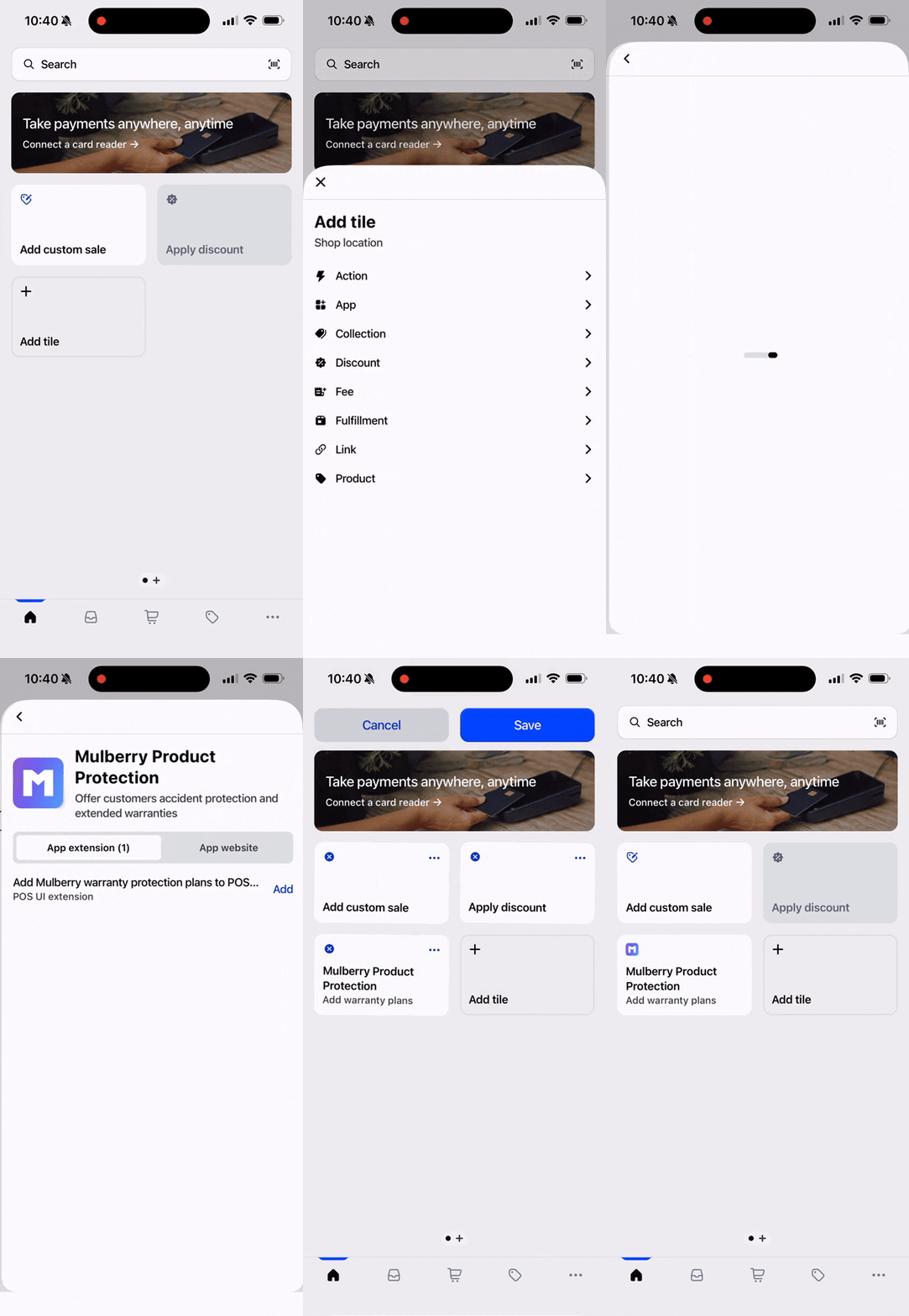
Adding the Mulberry Product Protection tile to your Shopify POS terminal takes just a few steps. Log in to your Shopify POS terminal on a supported device, then:
- From the Home Screen, tap Add Tile.
- On the Add Tile screen, select Apps and then Mulberry Product Protection.
- Tap Add next to the POS UI extension entry.
- Tap Save to place the new tile on your home screen.
You should now see a Mulberry Product Protection tile on your POS home screen with the subheading "Add warranty plans."
Adding Warranty Plans to an Order
There are two ways warranty plans get surfaced during a POS transaction: automatically when a product is added to the cart, and manually by tapping the Mulberry tile.
Automatic Offers (Adding a Product)
- Add any product to the cart (by scanning, searching, or browsing).
- If the product is eligible for warranty protection, a Mulberry Product Protection screen will appear automatically, showing the product name, price, and available warranty plans sorted by duration (e.g., "1 Year - $29", "2 Year - $49").
- Eligibility is cached per product to keep the experience fast. The first time a product is viewed at the point of sale, there is a brief check in the background. After that, the modal will appear (or not) instantly on Add to Cart.
- If you see the modal appear with no offers available, this typically only happens on a product's very first view at the point of sale. Subsequent visits will skip the modal correctly.
- Saving a product in Shopify clears its cached eligibility, so the next time it is viewed at the point of sale, eligibility will be re-checked in case the product has been changed in a way that should affect its warranty coverage.
- Tap a plan to add it to the order. The selected plan will briefly show a confirmation (e.g., "1 Year - $29 added") and the screen will close, returning you to the cart.
- If the customer does not want a warranty, tap No thanks to dismiss the screen and continue.
This automatic prompt also appears when the quantity of an existing item is increased (for example, by scanning the same product again), so the associate has the opportunity to add warranty coverage for the additional unit.
Managing Warranties (Tapping the Tile)
Tapping the Mulberry Product Protection tile on the home screen opens a management view where you can review and adjust warranty selections for all eligible items currently in the cart.
- From the Home Screen, tap the Mulberry Product Protection tile.
- The management screen displays one product unit at a time. If the cart contains multiple eligible items (or multiple quantities of the same item), use the left (←) and right (→) arrows to navigate between them. A counter (e.g., "2 of 5") shows your position.
- Products with a quantity greater than 1 are shown as individual units. For example, if a customer is purchasing 3 of the same item, you will see three separate slides — "Product Name (1 of 3)", "Product Name (2 of 3)", and "Product Name (3 of 3)" — so you can manage warranty coverage for each unit independently.
- For each unit, the available warranty plans are listed as buttons. The current state is reflected visually:
- No warranty selected: All plan options appear in their default style.
- Warranty already in cart: The active plan appears highlighted with a checkmark (e.g., "✓ 1 Year - $29").
- To add a warranty plan, tap the desired option. It will be added to the cart and the button will update to show the checkmark.
- To change a warranty plan, tap a different option. The previously selected plan will be removed from the cart and replaced with the new selection.
- To remove a warranty plan, tap the currently selected (highlighted) option. It will be removed from the cart.
- When finished, tap Done to close the management screen and return to the home screen.
TipThe management view is useful for reviewing the full order before checkout. It shows which items already have warranty coverage and which do not, making it easy to ensure nothing was missed.
Adding the Customer to the Order
Before checking out, you must add a customer to the order. This ensures that warranty contracts are created properly in Mulberry's system, which is required for the customer to file claims and receive service.
If no customer has been added, the extension will display a reminder:
- An inline message on the warranty screen: "Add a customer before checkout to ensure warranty delivery."
- When a warranty plan is added to the cart, the confirmation message will read: "Warranty added — remember to add customer before checkout."
To add a customer:
- Navigate to the Cart screen.
- Tap Add Customer.
- Enter the customer's information: first name, last name, email address, and phone number.
- Tap Save.
Once a customer is attached to the order, the reminder messages will no longer appear, and warranty confirmation messages will simply read "Warranty added to cart."
Completing the Order
Once all products and warranty plans have been added and a customer is attached to the order, complete the checkout as usual. Mulberry warranty contracts will be created automatically upon order completion — no additional steps are required.
Updated 4 months ago